Documentation / Daily work
Completing a sale in the POS
Open the register, add items, take payment and print the receipt.
Open the register
Each cashier opens the cash register once per shift by entering the opening cash float. This ties every sale to a till so the end-of-shift count can be checked.
Add items
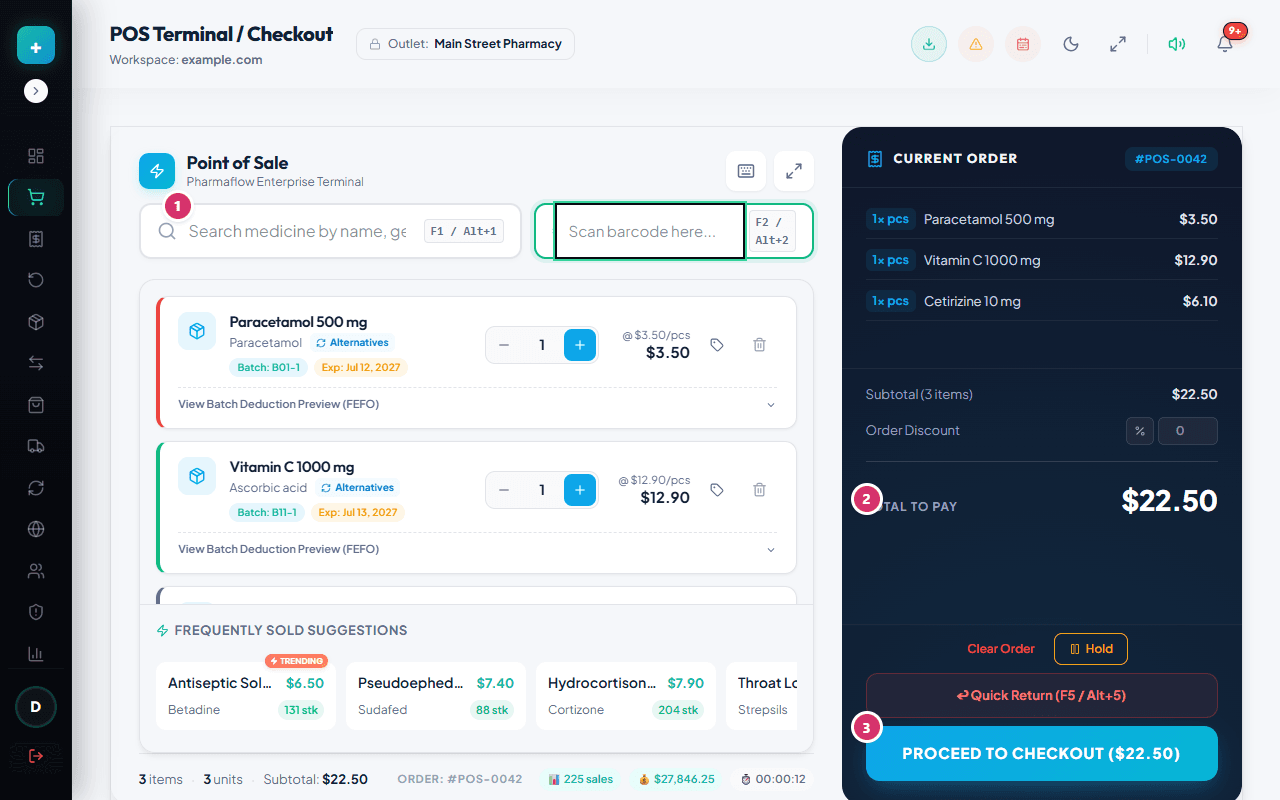
- Type a name or generic name in the search box, or scan a barcode. The product is added to the cart.
- Change the quantity in the cart. Out-of-stock and expired batches cannot be sold, and the sale is refused with a clear message if stock is short.
- Stock reserved for open online orders is not available to the counter, so the same unit cannot be sold twice.
Take payment
Choose cash, card or credit (credit needs a customer with a credit limit), or split the payment. Complete the sale to deduct stock and show the receipt.
Mistakes and double clicks
Each checkout carries a unique id. If the connection drops after you press pay and you press it again with the same cart, PharmaFlow recognises the id and returns the original sale instead of recording a second one. Change the cart and a new sale is created. Returns are handled from Returns & Waste or the quick-return shortcut.
Keyboard shortcuts
| Keys | Action |
|---|---|
| F1 or Alt+1 | Focus product search |
| F2 or Alt+2 | Focus barcode input |
| Ctrl+K or / | Open the command palette |
| F5 or Alt+5 | Quick return |
| F8 / F9 | Hold the current order / recall held orders |
| Ctrl+Enter | Proceed to checkout and complete the sale |
| Delete | Clear the current order |
| ? | Show the shortcut list |
| Esc | Close a dialog or clear the search |